What is OCR? A Complete Guide to Making Scanned Documents Searchable
Free online OCR PDF converter. Extract text from scanned PDFs, make documents searchable, and convert PDF images to editable text. No signup required.
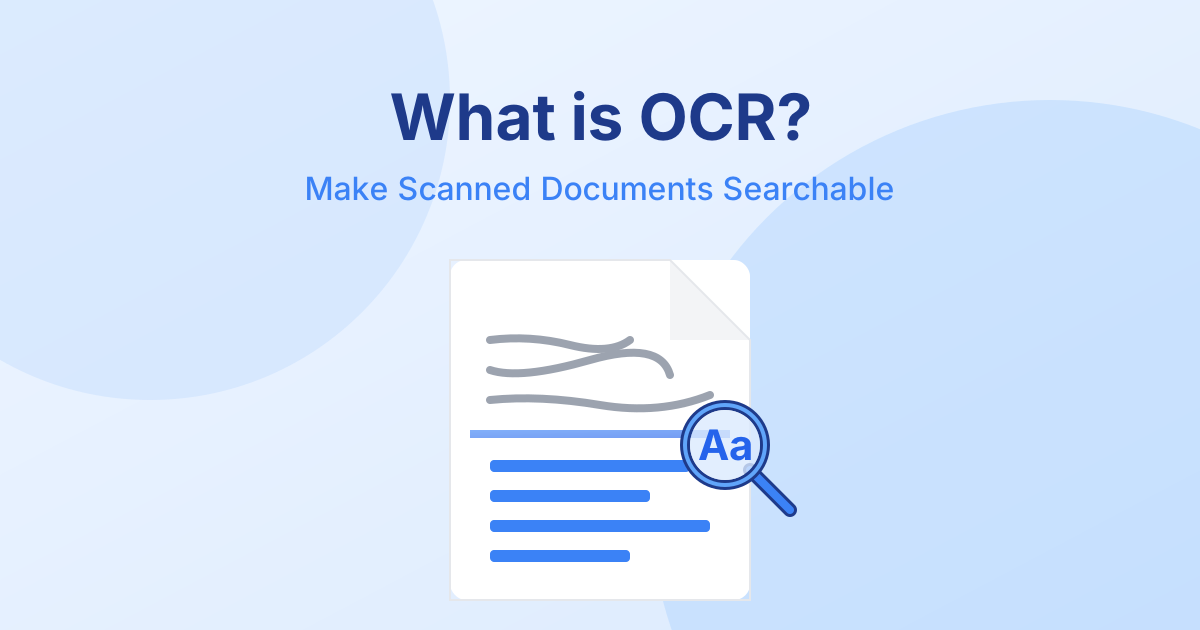
OCR PDF - Extract Text & Make PDFs Searchable
Have you ever received a scanned document and tried to select the text, only to realize it's just a flat image? It can be incredibly frustrating to retype pages of information just because you can't copy and paste. The solution to this common problem is OCR PDF technology.
In this guide, we'll explain exactly what OCR is, how it works, and how you can convert scanned PDF to text easily and effectively, allowing you to manipulate the text, edit it, and search for specific keywords.
What is OCR?
OCR stands for Optical Character Recognition. It is a technology that recognizes text within a digital image. It is commonly used to recognize text in scanned documents and images. OCR software can be used to convert a physical paper document, or an image file into an accessible digital version with text that you can search through and edit.
By using an online OCR tool, you can extract the text from an un-selectable PDF and convert it into a machine-readable format. This makes it possible to search for words within the document, copy and paste text, and use screen readers.
Make PDF Searchable
One of the most valuable applications of OCR is the ability to make PDF searchable online. Without OCR, a scanned PDF is essentially a photograph of a document.
When you apply OCR to the document, the software analyzes the shapes of the letters and numbers and converts them into selectable text data, layered invisibly over the image. This means you can hit Ctrl + F (or Cmd + F) and instantly find the information you need, saving hours of manual reading. By creating a searchable PDF, you drastically increase its accessibility and utility.
Convert Scanned PDF to Text
Another huge benefit is the ability to convert scanned PDF to text. Using a reliable PDF text recognition engine, you can strip away the formatting and images, leaving you with simple, editable raw text.
This is extremely helpful when:
- You need to update an old contract but only have a scanned copy.
- You are digitizing historical archives and need plain text for a database.
- You want to translate a physical document using a digital translation service.
Extract Text from PDF Images
Sometimes, you only need a specific portion of a document. A good PDF OCR converter allows you to extract text from PDF images quickly. Instead of transcribing text from a screenshot or an embedded diagram, OCR software "reads" the image and provides you with the text instantly.
OCR PDF to Word Conversion
Perhaps the ultimate goal for many users is a full OCR PDF to word conversion. This process doesn't just extract the plain text; it recreates the layout, fonts, and styling of the original scanned document inside a Microsoft Word file.
How to OCR a PDF Online
You no longer need to download heavy, expensive desktop software like Adobe Acrobat to use optical character recognition. You can process your documents straight from your browser.
Here is how you can use QuickPDF to easily perform OCR text recognition:
- Open the OCR PDF tool on QuickPDF.
- Select or drag and drop your scanned PDF file.
- Choose the language of the document if necessary.
- Let the secure, in-browser engine scan and recognize the text.
- Download your newly searchable PDF or the extracted text file.
With QuickPDF, the process runs directly in your browser. This means your sensitive documents are never uploaded to our servers, ensuring absolute privacy while still providing powerful text extraction capabilities.
Say goodbye to manual retyping and start making your PDFs searchable and editable today!
Enjoyed this guide?
Explore our suite of free online PDF tools—no signup required.
Start using QuickPDF