How to Password Protect a Sensitive PDF (And How to Unlock It) | QuickPDF
Learn how to password protect a PDF securely, lock your documents online for free, and discover how to remove a password from a PDF if you forget it.
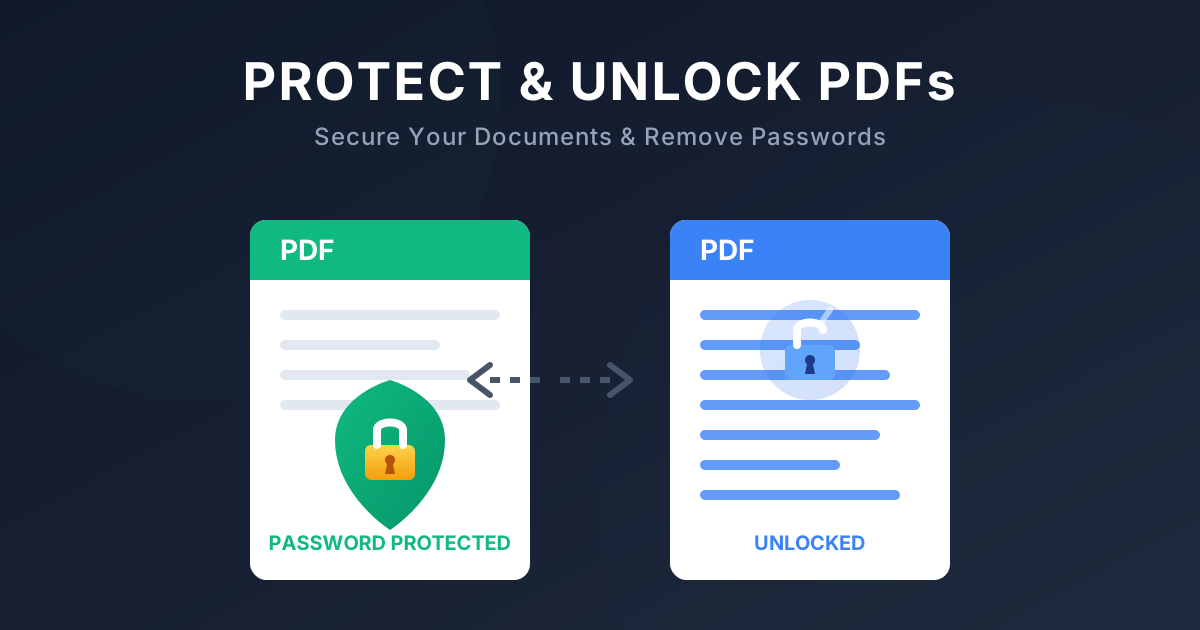
How to Password Protect a Sensitive PDF (And How to Unlock It)
Whether you're handling financial statements, legal contracts, or confidential business reports, ensuring that sensitive information remains secure is critical. Portable Document Format (PDF) files offer built-in security features to help you restrict access to authorized individuals only.
But what happens when you need to share that file widely, or if you simply forget the password you set months ago?
In this complete guide, we will walk you through how to securely password protect a PDF document and how to use a PDF password remover to unlock your files online for free.
Why Should You Password Protect a PDF Document?
Adding a password to your PDF is the easiest and most effective way to prevent unauthorized access. When you lock a PDF, you are not just adding a password prompt; you are effectively telling the software to encrypt the PDF with a password.
Without the correct password, the underlying data remains scrambled (using robust encryption like 128-bit or 256-bit AES) and completely unreadable.
You should consider locking your PDF if the document contains:
- Personally Identifiable Information (PII) like Social Security numbers or addresses
- Financial data such as tax returns (W-2s) or bank statements
- Confidential medical records
- Proprietary business strategies or trade secrets
How to Password Protect a PDF Online
Protecting your document shouldn't require expensive software. With QuickPDF, you can securely lock your PDF online for free. Our tool works directly in your web browser, ensuring your files are encrypted before they even leave your device, and are deleted from our servers shortly after processing.
Here is how you can easily add password protection to any PDF:
- Upload your PDF: Go to the QuickPDF Protect PDF Tool and drag and drop your document into the upload area.
- Set a Strong Password: Enter a secure password that you'll remember. A good password includes a mix of uppercase and lowercase letters, numbers, and symbols.
- Encrypt the PDF: Click the Protect PDF button. The tool will instantly apply strong encryption to your file.
- Download the Locked File: Once the process is complete, download your newly secured PDF.
Your document is now safe! Anyone who tries to open it will be prompted to enter the password.
Forgot PDF Password? We Can Help
Sometimes, the very security measures meant to protect us end up locking us out. If you're a business owner or student who set a password a long time ago, or if you received a secured document but the password was lost in transit, you might be wondering how to remove the password from a PDF.
Fortunately, you don't need to be a cybersecurity expert to decrypt a PDF document.
How to Remove Password from PDF Online
If you need to permanently unlock a PDF online for free, QuickPDF provides a dedicated, seamless PDF password remover tool. This is especially useful if you need to edit a file, print it, or share it with others without forcing them to enter a password every time.
Here's how to remove a password from your PDF:
- Upload the Locked PDF: Visit the QuickPDF Unlock PDF Tool and select the protected file you wish to unlock.
- Provide the Password (If Known): If you know the password and just want to remove the restriction for future use, you can enter it here to instantly strip the security layer.
- Unlock the File: Click the Unlock PDF button. If the file has a standard owner password restriction (which limits editing/printing), our tool can often automatically remove the password from the PDF file without you needing to enter it!
- Download the Unlocked PDF: Save your unrestricted document to your device.
Best Practices for Document Security
While knowing how to lock and unlock PDF files is important, maintaining good security hygiene is just as crucial:
- Don't use the same password twice: Use unique passwords for highly sensitive documents.
- Share passwords securely: Never send a locked PDF and its password in the same email or message. Use a secure password manager or a different communication channel (like a phone call or a secure messaging app) to share the password.
- Use secure online tools: Ensure that any online PDF tool you use has a strict privacy policy. QuickPDF guarantees that your files are never read, stored, or shared. All files are automatically deleted after processing.
Whether you need to securely encrypt your next tax return or recover a locked file from your archives, QuickPDF offers the ultimate free toolkit to manage your PDF files quickly and securely.
Ready to get started? Try our Protect PDF and Unlock PDF tools today!
Enjoyed this guide?
Explore our suite of free online PDF tools—no signup required.
Start using QuickPDF